
Converting a freelancer portfolio site from Figma to HTML usually means manually rebuilding a navigation bar, hero section, about section, project cards, a skills grid, and a contact area. In this example, I tested how EspritCode handles a multi-section portfolio design and reviewed the generated HTML and CSS against the original Figma file.
This is the fourth article in my Figma-to-HTML conversion series. After covering a landing page, a pricing page, and a SaaS dashboard, I wanted to try a different type of page entirely — a personal portfolio. Portfolio sites are a common request in freelance web work, and they bring a different set of layout challenges: multiple sections with alternating background colors, a horizontal two-column about layout, card grids for project work, and a minimal contact call-to-action.
This article shares the actual before and after, with real code snippets from the generated output.
The Figma Design
The portfolio has six sections: a dark hero with navigation and two CTA buttons, a two-column about section, a project cards grid, a dark skills section with three cards, a contact call-to-action, and a footer. Auto Layout is used throughout, including nested layouts inside the hero content, project cards, and skill cards.
Here’s the full Figma design:
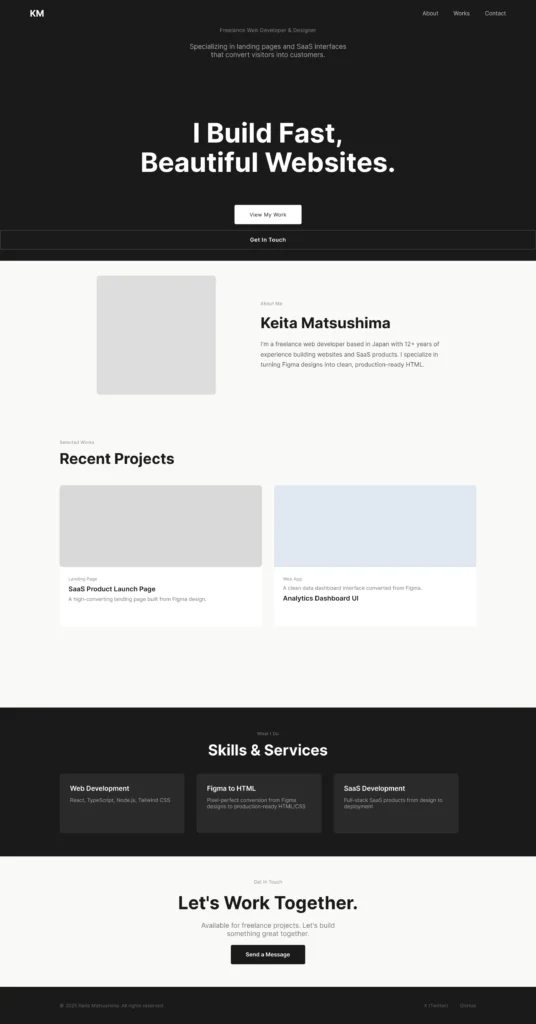
The design alternates between a dark background (#1A1A1A) for the hero, skills, and footer sections, and a light background (#F9F9F7) for the about, works, and contact sections. This kind of alternating color scheme is typical in portfolio and personal site designs, and it’s a useful test for whether the conversion tool correctly handles section-level background differences.
The Conversion Process
Same workflow as the previous examples: paste the Figma URL into EspritCode, wait a few seconds, download the generated HTML and CSS. No prompting or parameter tuning required.
The conversion finished in well under a minute.
If you’d like to see simpler examples first, see the Landing Page conversion example, the Pricing Page conversion example, or the SaaS Dashboard conversion example.
Why Portfolio Sites Are a Useful Test Case
Portfolio sites combine several layout patterns that don’t usually appear in a single SaaS landing page:
- A full-width hero with navigation, centered content, and multiple CTA buttons
- A horizontal two-column layout (image + text) in the about section
- A card grid for project work, each card with a thumbnail image, tag, title, and description
- A dark-background skills section with three equal-width cards
- A minimal centered contact section with a single CTA button
- A footer with left-aligned copyright text and right-aligned links
The variety of section types — and the alternating light/dark backgrounds — makes portfolio sites a practical test of how a conversion tool handles real-world page structures beyond a single-purpose landing page.
The Result
Here’s the converted HTML rendered in the browser:
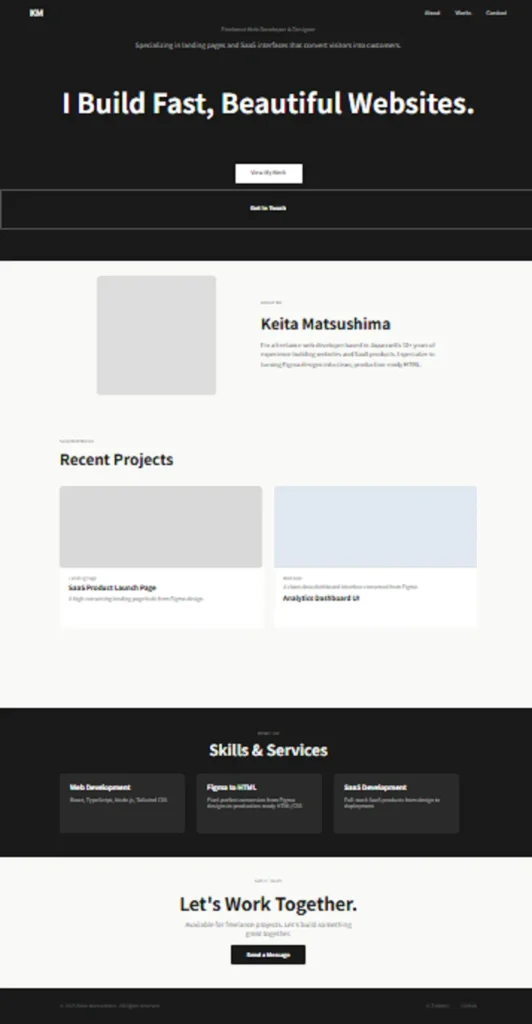
Comparing the two, the overall section structure is preserved: the dark hero sits at the top, the about section shows the two-column layout with the placeholder image on the left and text on the right, project cards appear in a two-column grid, the dark skills section holds three equal-width cards, and the contact and footer sections follow below.
A Look at the Generated Code
The most interesting parts to look at are the nested Auto Layout components. Here’s how EspritCode handles the hero CTA buttons:
<div class="figma-CTAGroup-7-43">
  <div class="figma-CTA-Primary-7-45">
    <p class="figma-CTA-Primary-Label-7-47">View My Work</p>
  </div>
  <div class="figma-CTA-Secondary-7-44">
    <p class="figma-CTA-Secondary-Label-7-48">Get In Touch</p>
  </div>
</div>
The CTAGroup Auto Layout (two buttons side by side with a gap) maps directly to a Flexbox row. Each button is its own Flexbox container with centered content, background color, and border radius from the Figma layer.
Here’s the Skills section card structure:
<div class="figma-Skill-Dev-11-96">
  <h3 class="figma-Skill-Dev-Title-11-98">Web Development</h3>
  <p class="figma-Skill-Dev-Body-11-99">React, TypeScript, Node.js, Tailwind CSS</p>
</div>
The three skill cards share an identical structure — only the content differs. Each is output as a Flexbox container with consistent padding, background color, and border radius inherited from the Figma layer.
A few observations on the broader output:
- Class names trace back to Figma. Names like
figma-Skill-Dev-11-96combine the layer name with the Figma node ID, so you can locate any element in the source design directly from the HTML class name. - Heading levels are inferred from typography. Section titles like “Skills & Services” and “Recent Projects” became
h2, while card titles like “Web Development” and “SaaS Product Launch Page” becameh3. This matches the visual hierarchy of the design — the inference is based on font size and weight, not a manual choice. - Thumbnail images reference Figma’s S3 API. The project card thumbnails were output as
<img>tags pointing to Figma’s image API URLs. In a real project, you’d replace these with actual project screenshots.
What Worked Well
- Section-level backgrounds converted correctly. The alternating dark (#1A1A1A) and light (#F9F9F7) sections — hero, about, works, skills, contact, footer — each carried their background colors through to the CSS without manual correction.
- The two-column about layout held together. The horizontal Auto Layout in the about section (image on the left, text on the right, separated by a gap) converted to a Flexbox row with the correct alignment.
- Skill cards translated cleanly. All three cards in the Skills grid output with consistent structure: dark background, border radius, padding, and the correct heading and body text hierarchy.
- The footer layout converted correctly. Copyright text on the left, navigation links on the right — the
justify-content: space-betweenFlexbox layout came through as designed.
Things to Refine After Conversion
As with previous examples, the output is a structured starting point, not a finished deliverable. A few things to address before shipping:
- Semantic tags. The navigation links are currently
<p>tags. Wrapping them in<nav>and<a>tags, and using<button>for the CTA buttons, would improve both accessibility and SEO. - Project card image replacement. The thumbnail
<img>tags point to Figma’s S3 API. Replacing these with actual project screenshots is a required step before publishing. - Responsive behavior. The design is desktop-only (1440px wide). Adding breakpoints for tablet and mobile — stacking the about section vertically, making the project grid single-column, and adjusting the hero typography — is manual work after conversion.
- Class name refactoring. Renaming
figma-prefixed classes to something likehero__ctaorskill-cardmakes the CSS easier to maintain.
None of these are specific to EspritCode — they’re the standard steps for turning any generated baseline into production-ready code.
Portfolio Sites in Freelance Web Work
Portfolio and personal sites are a staple of freelance web work. Clients — designers, developers, photographers, consultants — frequently need a personal site that establishes credibility and drives contact inquiries. The structure is almost always the same: hero, about, work samples, skills or services, and a contact section.
Because the layout patterns are consistent across portfolio projects, a conversion tool that handles one portfolio design well is likely to handle others efficiently too. Starting from a Figma-to-HTML baseline means spending time on customization — actual project content, typography refinement, responsive breakpoints — rather than on reconstructing layout structure from scratch.
For iterative client work, the deterministic output is useful: if the client updates the hero copy or adds a new project card in Figma, reconverting produces a structurally consistent result that’s straightforward to diff against existing edits.
Try It Yourself
Want to test your own portfolio or personal site design? The Free plan includes 3 conversions per month — no credit card required — so you can compare your Figma file with the generated HTML before committing to anything.